
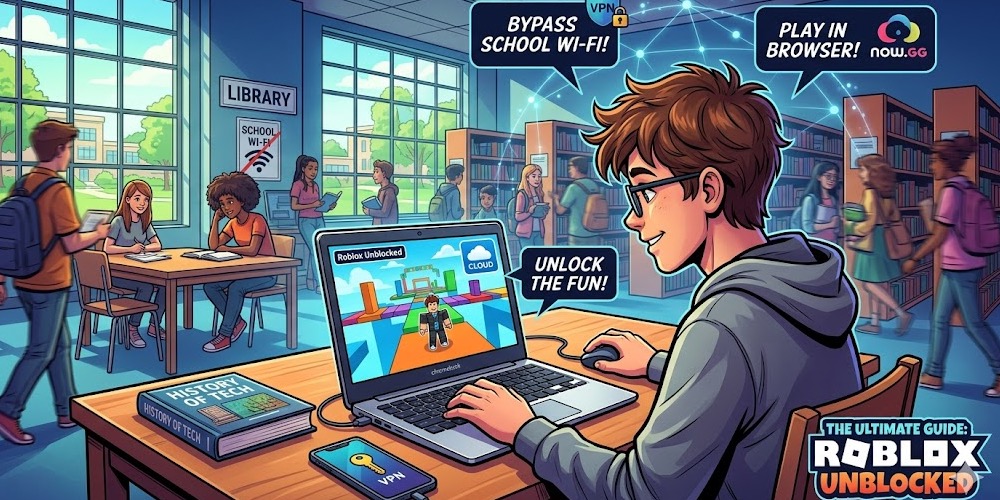
The Rising Demand for Roblox Unblocked
There is little doubt that Roblox has taken the global gaming world by storm. Acting as a massive sandbox game engine, it is often compared to legendary titles like Minecraft, though it features its own iconic Lego-style characters and mechanics. The platform offers players an almost infinite universe of possibilities. Because the community generates the content, you can play nearly anything you can imagine—from high-stakes action games and racing simulators to casual role-playing and educational servers. This endless stream of content has millions of players around the world completely hooked.
However, a major issue arises when players attempt to access the platform on restricted networks. Whether you are trying to play on a school Wi-Fi network, during a break at your workplace, or even at home using a heavily monitored school-issued Chromebook, you will likely hit a digital wall. System administrators frequently block entertainment and gaming websites to maintain focus and preserve bandwidth. This strict filtering is exactly what has led to a massive surge in searches for “Roblox unblocked.”
If you are encountering network barriers, you do not have to give up on your favorite games. By utilizing a bit of technical knowledge, players have discovered various workarounds to bypass these restrictions. Based on expert tech insights and community troubleshooting, this comprehensive guide explores the main methods for getting Roblox unblocked on your device, highlighting everything from cloud-based browser gaming to network encryption tools.
Disclaimer: Bypassing network restrictions can get you in trouble with your school or employer. By utilizing these methods, players accept any consequences that may result from violating their institution’s acceptable use policies. Always ensure you play responsibly.
Play free online games instantly, no download requiredMore
Method 1: Cloud Gaming in Your Browser via Now.gg
One of the most innovative and popular methods to achieve a Roblox unblocked experience is through cloud gaming. If you have ever wanted to jump into the platform without installing the official app, waiting for massive updates, or relying on a high-spec device, a cloud gaming platform is the perfect solution.
What is Now.gg?
At its core, Now.gg is a mobile cloud gaming platform. It operates by running Android applications—such as the Roblox mobile app—on incredibly powerful remote servers. The visual output of the game is then streamed directly to your web browser. This process is very similar to how premium services like NVIDIA GeForce NOW or Xbox Cloud Gaming operate, but it is specifically optimized for mobile-first applications.
Instead of forcing your computer or smartphone to run the heavy engine natively, the heavy lifting is processed in the cloud. As you play, your inputs—whether they are from a keyboard, a mouse, or a touchscreen—are sent back to the cloud server in real time. Because it operates inside a web browser rather than as a standalone executable file, many basic network filters fail to block it, effectively making Roblox unblocked.
Why Choose Cloud Gaming for Roblox?
There are several major advantages to using a cloud platform instead of the traditional downloaded application:
- No Downloads or Updates Required: Gamers are often tired of constant, mandatory updates or running out of local storage space. With cloud gaming, you are always playing the absolute latest version of the game. There are no local files to manage, and no patching is ever required.
- Perfect for Low-End Devices: Because all the graphical processing is handled remotely by high-end servers, you do not need a powerful gaming rig to get good frame rates. You can easily run the game in your browser on a basic school Chromebook, an older laptop from years ago, or even a standard mobile browser.
- Platform Agnostic Functionality: Cloud platforms are incredibly versatile. They work on Windows PCs, macOS devices, ChromeOS hardware, Android phones, and iOS tablets. Essentially, if your device has a modern web browser and a decent internet connection, you can play.
- Seamless Cross-Device Access: Cloud streaming allows you to start a session on your school Chromebook and pick it right back up on your home PC or mobile phone without ever worrying about syncing issues or re-installing the application.
How to Play Using This Method
Getting started with cloud gaming takes less than a minute. Simply follow these steps:
- Open your preferred web browser.
- Navigate to the specific URL for the game on the platform (e.g., now.gg/roblox).
- Click the button that says “Play in Browser.”
- Sign in using your standard Roblox account credentials.
- Start exploring your favorite user-generated games instantly. You are playing the real, authentic platform, simply streamed from a remote location.
Limitations to Keep in Mind
While browser-based cloud gaming is a massive game-changer, it is not without its flaws.
- Internet Speed Dependency: Because you are streaming live video and sending real-time inputs, your internet speed matters immensely. A stable and relatively fast connection (Wi-Fi is highly recommended over cellular data) is required to prevent lag and ensure smooth performance.
- Optimization and Controls: Some highly complex games within the platform might not be perfectly optimized for cloud play, particularly those that require intense graphical resources or pinpoint mouse-precision controls. Furthermore, while desktop users enjoy full keyboard and mouse support, mobile touch controls can sometimes vary in quality.
- Network Admin Blocks: While cloud sites aren’t blocked on most standard networks, highly diligent system administrators can manually add them to their blocklists. Therefore, availability might still vary from school to school.
Method 2: Bypassing Restrictions with a VPN
If browser-based streaming is not an option, or if your school has already blocked cloud platforms, the next best step is utilizing a Virtual Private Network (VPN). A VPN is a powerful security tool designed to encrypt your internet traffic and route it through an external server, effectively masking your online activity from the local network administrator.
How VPNs Create a Roblox Unblocked Environment
When you connect to a school or workplace Wi-Fi, the network routers can see exactly which websites you are trying to visit. If it sees a request for Roblox.com, the firewall immediately drops the connection. However, when you turn on a VPN, your traffic is scrambled into an unreadable format. The local network can only see that you are sending data to an anonymous VPN server, not the final destination. This allows players to easily slip past the usual network restrictions imposed by their school.
Choosing the Right VPN Service
It is highly recommended to use a VPN that is part of a paid service rather than relying on free alternatives. To be clear, free VPNs are rarely completely reliable; they often suffer from slow speeds, data caps, and questionable privacy practices.
Instead, utilizing premium software is almost a guaranteed way to get around any school setting. Popular options discussed in the gaming community include:
- TotalAV: Known for being a relatively cheaper option that provides a solid VPN while also boasting the added benefit of excellent malware detection software.
- NordVPN: Frequently recommended due to its high-speed servers and the availability of dedicated IP addresses, ensuring a stable connection for gaming.
Setting Up Your VPN
If you are using most mobile devices or computers, getting set up is incredibly simple. You simply need to download the user-friendly software provided by your chosen VPN company. These applications typically feature an easy “toggle” or “connect” button. Once activated, your internet connection is secure, making playing Roblox unblocked a mere click away.
Method 3: Alternative Quick Fixes (Proxies, Cache, and URLs)
If you cannot use cloud gaming and are unable to install a VPN on a strict school Chromebook, there are a few other clever, albeit less reliable, tricks you can try. These methods require a bit of technical willingness to work around the system.
1. Utilizing a Proxy Server
Proxies function somewhat similarly to VPNs, acting as a middleman between your computer and the internet. They are an easy way to quickly hide your IP Address and bypass basic local blocks. Because schools often do not have massive IT crews monitoring every new site, their knowledge of how to actively block every single proxy server is generally pretty low. By searching for reliable web proxies, players can often route their connection directly to the game.
2. The Google Cache Trick
This is an incredibly interesting workaround that relies on Google’s search engine mechanics, though it does not work 100% of the time. When Google indexes the internet, it frequently saves a “cached” version of websites to help users load content faster if a site goes down. Essentially, it is a saved, archived snapshot of the website.
To try this:
- Search for Roblox on Google.
- Look for the little down arrow or three dots next to the official website link in the search results.
- Click on “Cached.”This will attempt to open the site directly from Google’s servers rather than the blocked domain. Be aware that this method will fail if Google does not have a functional cached version of the login page available.
3. Shortening the URL
Basic firewall blockers are sometimes incredibly simplistic. In some cases, websites are blocked merely by blacklisting the exact text string of the website name (e.g., “roblox.com”). You can sometimes bypass this by using a URL shortener service. If you go to a site like Bitly, paste the game’s web address in, and generate a shortened link, the school’s firewall might not recognize the new, randomized string of letters. Clicking the shortened link could successfully route you around the blockers.
Troubleshooting: Fixing Technical and Browser Issues
Even if you successfully bypass your network’s restrictions, you might run into local hardware or software errors that prevent the game from running smoothly. This is especially true for players trying to run unblocked versions through complex means on specific hardware.
Dealing with Memory and Crashing Issues
As detailed by users in the Samsung computing community, trying to run unblocked versions of the game on newly purchased hardware can sometimes result in unexpected crashes. For instance, players using high-end laptops like the Samsung Galaxy Book 4 Edge (equipped with Windows 11, 16GB of RAM, and Qualcomm Adreno GPUs) have reported the system crashing, memory filling up, and the browser displaying “Can’t connect to the internet” errors when trying to load cloud gaming sites like Now.gg.
If you experience these frustrating issues where non-gaming websites work fine but the game crashes, the problem may not be your network’s firewall, but rather local software conflicts.
Step-by-Step Browser Troubleshooting
If you are struggling to get the platform to load properly, follow these diagnostic steps:
- Verify Your Region Settings: Ensure that your computer’s region settings were not accidentally changed. If you recently traveled or your computer underwent automatic Windows feature updates, it might have reset. Navigate to your computer’s Settings > Time and Language > Region, and ensure it is set to your actual local region (such as “United States”). Incorrect regions can cause web services to block access.
- Switch Web Browsers: Not all web browsers handle complex web-gaming scripts the same way. If you are experiencing memory crashes or infinite loading screens on a specific browser (like the native Samsung browser), try using a different one. Many players report that switching to Google Chrome fully resolves loading issues for unblocked cloud platforms.
- Clear Your Cache and Cookies: Over time, corrupted browser data can cause major connection issues. Go into your preferred browser’s settings and clear your cookies, cache, and browsing history. This forces the browser to pull a completely fresh version of the website.
- Check for Hidden Local Controls: Even if you think your network is completely unrestricted, ensure that no subtle parental, school, or business security controls are running quietly in the background on your specific user account.
- Submit Error Reports: If you are confident that your internet connection is stable, you have no local firewalls enabled, the network itself is unblocked, and you still cannot load the game, you may have encountered a genuine software bug. In this case, utilize your device’s built-in feedback tools to send an error report to the manufacturer immediately after the crash occurs.
Conclusion: Enjoying the Game Responsibly
Finding a way to play Roblox unblocked can be an incredibly rewarding technical victory. Whether you opt for the seamless browser-based streaming offered by cloud platforms like Now.gg, invest in the high-grade encryption of a paid VPN like NordVPN or TotalAV, or utilize quick-fix proxy and cache tricks on a school Chromebook, the options are plentiful.
However, as you apply these methods and troubleshoot any lingering browser issues, remember the context of where you are playing. Cloud play in the browser is a massive game-changer for casual gaming on the fly, offering an escape from the usual download-and-update grind. But bypassing institutional network protections should be done thoughtfully. Secure your connection, keep your local device hardware optimized by clearing your cache, and most importantly, remember to still pay attention in class when you aren’t busy exploring user-generated worlds!